Architecture
This page describes how Cenova Command is put together — the services that run on the host, how they talk to each other, and how authentication, licensing, and networking fit in.
At a glance
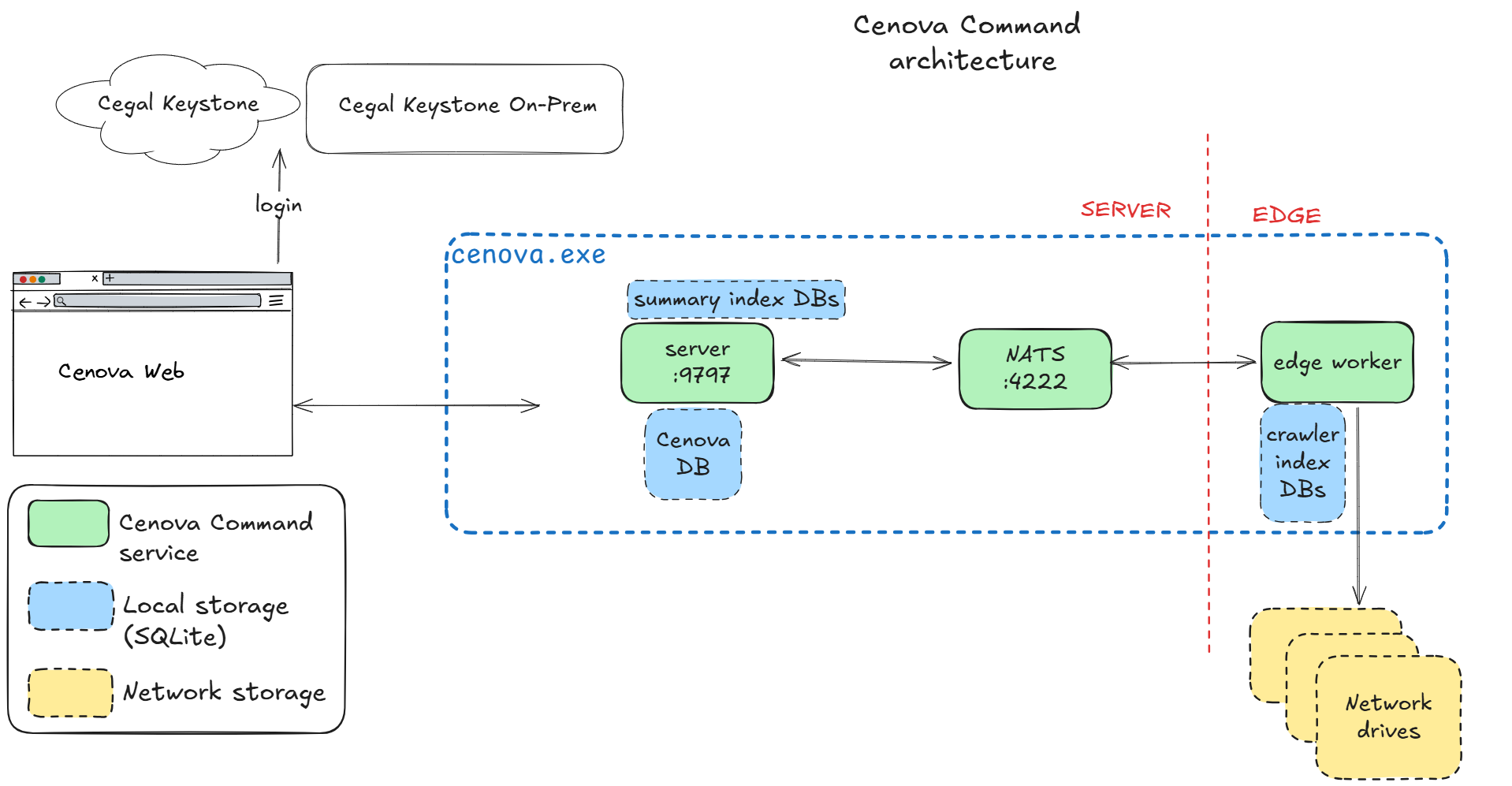
- Two Windows services: Cenova Server and Cenova Edge
- Inter-service messaging: NATS on port 4222 (local only)
- Web UI: port 9797 (firewall rule created during install)
- Auth: OAuth2 / OpenID Connect via Keystone or Keystone On-Prem
- Licensing: separate from authentication, key-based
1. System diagram
The high-level architecture for the Cenova Command module:
2. Components
Cenova Command is delivered as a small set of Windows services and supporting binaries.
| Service | Role |
|---|---|
| Cenova Server | Hosts the web app and central back-end. Listens on port 9797. |
| Cenova Edge | Performs indexing of data sources. Runs under a service account that has read access to the file shares being scanned. |
In the initial release, Cenova Server and Cenova Edge are colocated on the same VM. Splitting them across machines is planned for a future release.
For the full list of supporting binaries and user-facing artifacts that are installed alongside the services, see Installed components.
3. Authentication
User authentication is handled by OAuth2 / OpenID Connect. Cenova supports two providers — see the Installation guide for the full comparison.
| Option | Identity backend | Notes |
|---|---|---|
| Keystone (cloud) | Cegal IAM, backed by your Entra ID tenant | Requires internet access. |
| Keystone On-Prem | Integrated Windows Authentication | Requires the Keystone On-Prem server component to be installed — either on the same VM as Cenova Server or on a separate, network-visible Windows VM. |
Cenova then acts on behalf of the user using dedicated service accounts for the Server and Edge Windows services. The Edge account in particular should be chosen so that it can reach the file shares you intend to scan.
4. Licensing
- Licensing is separate from authentication.
- Cenova is unlocked using license keys, which activate specific modules.
- Request a license key from support.geo@cegal.com.
5. Networking
| Port | Service | Exposure |
|---|---|---|
| 9797 | Cenova Server (web app) | Exposed to end users. A firewall rule is created on the host during installation if you opt in. |
| 4222 | NATS (Server ↔ Edge messaging) | Local only — does not need to be exposed outside the VM while Server and Edge are colocated. |
NOTE
If you change the Cenova Server port, also update any firewall rules and the URL given to your end users.
6. Related reading
- Introduction — what Cenova Command does and how it fits with other Cenova modules.
- Use cases — the problems Cenova Command solves in practice.
- Installed components — everything the installer puts on the host.
- Installation guide — step-by-step deployment on a Windows Server.
- How it works — a tour of the web app and admin tools.
- Pre-Assessment and Core Reporting — running scans and dashboards.
- Roadmap — what's planned next.
- FAQ — common questions about deployment and scope.